Update and roll back
hal0 updates itself. The hal0 update CLI is a thin client over the
daemon’s /api/updates/* surface, so the same code path runs whether you
trigger an update from the shell or the dashboard. The actual swap is a
cosign-verified, atomic symlink swap of /usr/lib/hal0/current — your
config (/etc/hal0) and state (/var/lib/hal0) are untouched by the swap
itself.
Check for an update
Section titled “Check for an update”hal0 update --checkFetches the release manifest for your channel and diffs it against the
running version. It shows current → latest (channel) plus whether an
update is available, and (when present) the release date, notes URL,
digest, and signer identity. A revoked (yanked) release is never reported
as available even if it’s newer.
Apply an update
Section titled “Apply an update”hal0 updateChecks, then stages the update, shows you the release notes (highlights, breaking changes, migrations — pulled from the release manifest), asks for confirmation, and applies. Skip the confirmation prompt for scripted runs:
hal0 update --yesThe CLI polls the apply job until it reaches applied or failed. After
a successful apply the daemon try-restarts hal0-api itself — the CLI
never touches systemd.
To pin a specific version instead of the latest:
hal0 update --target v1.0.0Channels
Section titled “Channels”Three release channels are available: stable, preview, and
nightly. Set your channel (it persists in hal0.toml), which also
runs a check:
hal0 update --channel preview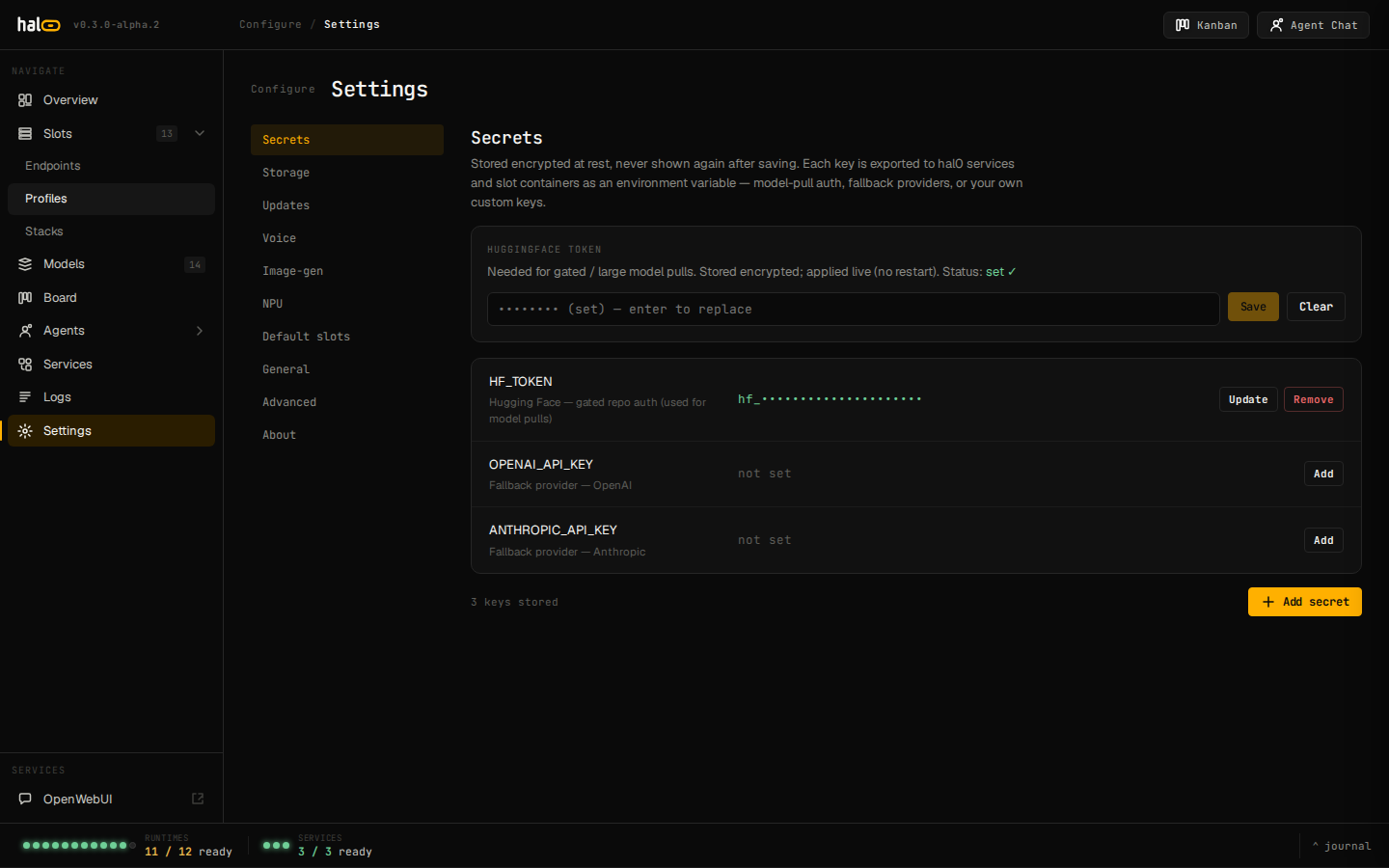 Settings → Updates: current version, available release, and channel selector.
How the atomic update works
Section titled “How the atomic update works”-
Fetch the release manifest for the channel.
-
Download the release tarball plus its detached cosign signature into a per-version cache under
/var/lib/hal0. -
Verify the SHA-256 digest against the manifest, then the signature with
cosign verify-blobagainst the exact GitHub Actions OIDC identity declared in the manifest. A missingcosignbinary or a failed verification aborts the update — nothing is swapped. -
Extract the tarball and run any forward config migrations the release needs — including, on a pre-v1.0 box, the one-time
profiles.tomlreseed described below. -
Swap the
/usr/lib/hal0/currentsymlink atomically, then reinstall the code into the venv. A failed re-install rolls the symlink back socurrentand the venv never diverge. -
Re-render every slot’s systemd unit through the newly installed code. This step never bounces a running slot — the CLI shows a “N slots need restart” banner post-apply; pass
--restart-slotsto bounce only the slots left running the pre-update launch command. -
Record the prior symlink target in
/var/lib/hal0/hal0.previousfor rollback.
The profiles.toml reseed (a pre-v1.0 one-time wipe)
Section titled “The profiles.toml reseed (a pre-v1.0 one-time wipe)”hal0’s seed profile catalogue is baked into code, not into
/etc/hal0/profiles.toml — the file only ever holds your own custom
entries. Older (pre-v1.0) installs could accumulate stale materialized
seed rows in that file alongside your custom ones. As part of crossing
the v1.0 schema boundary (any config still at schema_version < 2),
hal0 update runs a one-time reset: it deletes profiles.toml
outright, so the next config load serves the catalogue purely from code.
This is a real, destructive delete — not a merge — and it takes your custom profiles with it.
-
Automatic backup, every time. Before the file is touched, hal0 copies it to
/var/lib/hal0/backups/profiles-<UTC-timestamp>.toml(e.g.profiles-20260731T120000Z.toml). This backup is unconditional — it happens whether or not you have custom profiles. -
Consent, if you have custom profiles. If the file contains only materialized seed rows, the reset proceeds silently. If it contains profiles that aren’t part of the built-in catalogue,
hal0 updatestops and lists the exact custom profile names at risk, asking you to confirm before it deletes them. -
Headless runs default to skip, never wipe. Running non-interactively without
--yesskips the reset entirely rather than deleting anything without a human present to confirm. -
No restore command. There is no
hal0 profile restoreor similar — recovering a wiped custom profile means manually copying the relevant[[profile]]block back out of the timestamped backup file into/etc/hal0/profiles.tomlyourself.
Preserve your custom profiles before updating
Section titled “Preserve your custom profiles before updating”Belt-and-suspenders beyond the automatic backup — do this before your
first update past the v1.0 boundary if you have any hand-written entries
in profiles.toml:
sudo cp /etc/hal0/profiles.toml ~/profiles.toml.bakNote the names and settings of anything custom in there. After the
update, if the reset ran, restore what you need by hand — either from
your own copy, or from
/var/lib/hal0/backups/profiles-<timestamp>.toml, which hal0 wrote for
you automatically:
sudo cat /var/lib/hal0/backups/profiles-*.tomlThen re-add the custom [[profile]] blocks you want back into
/etc/hal0/profiles.toml with hal0 config edit profiles (or hand-edit
and hal0 config validate before reloading).
Roll back
Section titled “Roll back”If an update misbehaves, revert to the previously installed tree:
hal0 update --rollbackRollback reads /var/lib/hal0/hal0.previous, atomically swaps the
current symlink back to it, then reinstalls that prior tree into the
venv and re-renders every slot unit. Unlike an apply, a rollback does
not try-restart hal0-api for you — the running process keeps
serving the newer code until you restart it yourself. It warns (without
erroring) if the previous tree is gone on disk, or if the current
config’s schema version is ahead of what the previous tree understands —
migrations are forward-only, so the older tree just parses what it can.
If no previous-version record exists, there’s nothing to roll back to.
As covered above, rollback never restores profiles.toml — that’s a
config-state change, not a code-tree change, and the two are deliberately
decoupled.
Repin the OpenWebUI companion container
Section titled “Repin the OpenWebUI companion container”hal0 update owui --checkhal0 update owui --target <digest>hal0 update owui --yes --forceIndependent of the main hal0 update flow — repins the bundled
OpenWebUI container by SHA-256 digest.
See also
Section titled “See also”- Edit configuration —
/etc/hal0is preserved across updates, with the one exception above. - Logs and activity — watch the apply job and
hal0-apirestart.